Showing posts with label How-To's. Show all posts

Top Things To Do After Installing Luna

After elementary OS Luna has been officially released, a surge of new eOS users has arrived, and we are here to help. Everyone, including me, loves a "Top Things To Do After Installing..." list, so let's get you started.

UPDATE

After you have a freshly installed copy of elementary OS Luna at your hand, the first thing you should do is check for updates. You can either use the Update Manager by clicking on Applications (located on the top left corner) and looking for it there, or by opening your terminal (shortcut to open: CTRL + ALT + T) and typing:

sudo apt-get update && sudo apt-get upgrade
Updating your system is always a good idea. Updates include bug fixes, security patches, and new features!
MIDORI AND FLASH

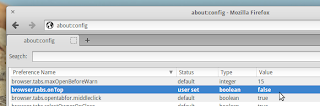
eOS comes with the awesome lightweight browser Midori (pronounce it “midoɺi”, with a Spanish/ Japanese “r”). To get Flash working for it, you'll need to install ndiswrapper and do some tweaking, but don't fret, it's easier than it sounds. Just open up your Terminal (CTRL + ALT + T) and type in:

sudo apt-get install flashplugin-installer nspluginwrapper
sudo nspluginwrapper -i /usr/lib/flashplugin-installer/libflashplayer.so
nspluginwrapper -v -a -n -i
Update: Lewis Goddard has created a script that fixes flash in Midori if the above does not work for you here. Just follow the instructions provided there.
That's it, Midori should run Flash now!

OTHER BROWSERS

If you prefer to use Firefox or Chromium, no problem!

Install Firefox

You can set up Firefox to fit in elementary OS perfectly as described here.

Like Chrome/Chromium? No Problem.

Install Chromium

Theme Chromium to fit into eOS as described here.

COMMUNITY PPA

Elementary Update has set up a community driven repository for third party applications, themes and more, all tailored to fit right into eOS. You can easily add the PPA to your system by opening your Terminal (CTRL + ALT + T) and typing:

sudo apt-add-repository ppa:versable/elementary-update
sudo apt-get update

With the community PPA enabled you can now do the following.
ELEMENTARY TWEAKS

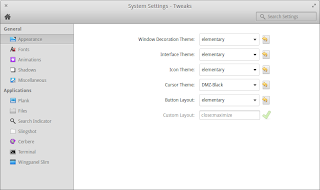
You might be familiar with Gnome Tweak Tool or Ubuntu Tweak. Well, for elementary OS we have elementary Tweaks. With elementary Tweaks you can easily change advanced settings that are otherwise hidden in elementary OS and more!

Install elementary Tweaks

Once installed, you'll be able to access it by opening the System Settings and clicking on Tweaks. There are even more options in Tweaks that you can unlock by reading on and following the instructions.
WINGPANEL SLIM

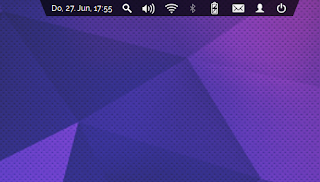
Wingpanel, the super sexy space-saving top panel of eOS, is great as it is, but you might want something even more space saving due to a small screen or your personal preference. +Heath Paddock has forked Wingpanel and coded the awesome Wingpanel Slim. It is customizable through elementary Tweaks once installed.

Install Wingpanel Slim

Once installed, open elementary Tweaks, activate Wingpanel Slim by hitting the switch, and customize it to your liking.
INDICATOR SYNAPSE

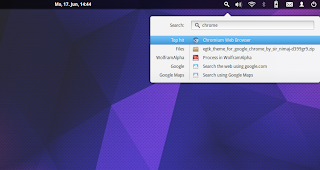
+Tom Beckmann, the developer behind Gala, elementary's Window Manager, has coded a search indicator based on Synapse.

Install Indicator Synapse

Once installed, log out and back in and you'll have a search icon in your panel. You can change the keyboard shortcut with elementary Tweaks!
APPS

There are also a bunch of elementary styled applications in the Community PPA. Here is a list of their package name and a short description:
  • audience - A modern media player
  • birdie-granite - Twitter client for elementary OS
  • cable - IRC client for elementary OS
  • etube - Youtube viewer for elementary OS
  • feedler - Awesome RSS reader
  • foto - A very simple image viewer
  • gazette - Clock, news and weather for your desktop
  • nuvolaplayer - cloud music integration


Install Third Party Apps


THEMES

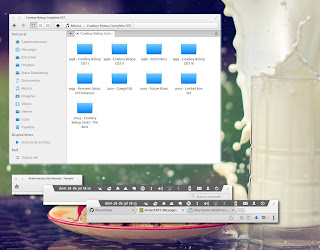
Albeit the awesome default elementary theme, the community has created a slew of astonishing themes and icon themes too.
  • elementary-blue-theme
  • elementary-champagne-theme
  • elementary-colors-theme
  • elementary-dark-theme
  • elementary-harvey-theme
  • elementary-lion-theme
  • elementary-matteblack-theme
  • elementary-milk-theme
  • elementary-plastico-theme
  • elementary-whit-e-theme


Install Themes

ICON THEMES

The same goes for icon themes that have been customized to fit eOS, here is the available list:
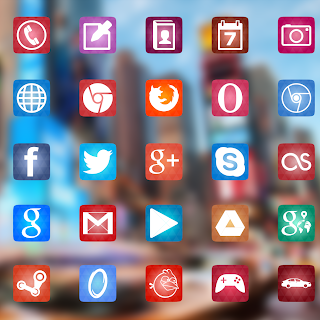
  • elementary-elfaenza-icons
  • elementary-emod-icons
  • elementary-enumix-utouch-icons
  • elementary-nitrux-icons
  • elementary-taprevival-icons


Install Icon Themes

OTHER THEMES

If you like the default elementary OS icon theme, you should install elementary-thirdparty-icons, which provides additional icons for thirdparty apps:

Install Icons for Thirdparty Apps

Additionally, you can install extra Plank (the Dock that elementary OS uses) themes:

Install Dock Themes

How about some awesome new wallpapers?

Install Wallpapers Collection

UPDATE YOUR KERNEL

Since elementary OS is based on Ubuntu 12.04, it uses a rather outdated kernel. If you have any hardware issues, you might be able to fix them by installing a backport of Ubuntu's 13.04 Kernel. Although some users report that newer kernels don't work well for them. Note: You can always revert.

Install Raring Generic Linux

Reboot and it should work! If booting fails, you can boot with your old kernel by holding down SHIFT during the boot process, you can now choose your old kernel, boot up, and remove the linux-generic-lts-raring package from Software Center.
That's it! You should be all set to customize elementary OS Luna to your needs.
Read More

Install and use Indicator Synapse

Yesterday +Eduard Gotwig pointed me to a new Synapse frontend, Indicator Synapse, a search indicator made by +Tom Beckmann. The indicator is similar to Spotlight. When installed, it adds search functions elementary OS currently lacks.


As of now, the indicator has some bugs and did glitch for me, but it had no problems finding everything I searched for.

You can either get indicator synapse from the Community PPA or Eduards PPA.

Here are instructions for installing indicator synapse from the Community PPA. If you already have the Community PPA added, you may skip this step. Open up the Terminal (CTRL+ALT+T) and type:

sudo apt-add-repository ppa:versable/elementary-update
sudo apt-get update


Now install the package indicator-synapse:

sudo apt-get install indicator-synapse

Log out and back in and you should be all set!

INSIGHT

The future of the indicator is uncertain, since the Synapse Project seems abandoned (The last revision on Launchpad was uploaded in 2012). A viable option would be to fork it for elementary OS, which would require it to be properly maintained and have active developers work on it.
Update: Indicator Synapse has since been updated. It is now possible to launch the search indicator with the keyboard shortcut ALT+SUPER+SPACE
Read More

Customizing Your Window Controls

Would you like to add a minimize button to your elementary OS application windows? Many people do, and many have good reasons for why they want to. But for some reason elementary has opted-out of a minimize button...
Believe it or not, the great people of elementary are not mad. They have a very logical explanation for why there is not a minimize button on your application windows.

So, first I am going to show you how to enable the minimize button, but by doing so you are promising me that you’ll read to the end of this article and hear the whole story.

Deal?

To customize your window controls, open up dconf-editor, navigate to org →pantheon → desktop → gala → appearance and notice the button-layout attribute (second one down, from the top).
To enable a minimize button, change the field to close, minimize:maximize

This places the minimize button to the right of the close button (that’s just my personal preference). Think of the ‘:’ as a fence, objects to the left of it are anchored on the left and objects to the right are anchored (you guessed it) on the right. You can div and dabble as you please with your custom window configuration!
This topic has caused some buzz over through the development of elementary OS. 

What should the default window controls be?

Is there some standard or protocol for the types of window controls that should be displayed for the user?
Not too long ago, in November of 2011, Daniel posted an entry on the elementary OS journal entitled, What’s Up With Window Controls? In this article, he gives a great background of window controls, their different patterns of use on different operating systems and why they are used that way. Towards the end of the article he tells us that from this point forward in elementary OS, there will be two window controls; Minimize and Maximize.

This choice resulted in a tsunami of comments from various users voicing their opinion, for and against. About a year later, Daniel posted another journal entry entitled, What's (Still) Up With Window Controls? This article illustrated the overwhelming success of their previous choice.

Now onto my story...
I don’t know if this is a conditional response that I have developed over my years of computing, but I often feel the need to have a minimize button. I've added the minimize window control to every fresh install of elementary and never bothered reading elementary's reasoning as to why it wasn't enabled by default.

Once I had the idea for this article, I pitched it to my editor Aaron and he urged me to read those previous journal entries I spoke of. After reading, I was convinced. Daniel's journal entries convinced me to break a habit I've had for 16 years. I urge you to read those entries. I could give you a cheap summary of them, but the source is much greater than run off. The people of elementary have thought long and hard about their user experience, so why not benefit from the fruits of their labor?
Read More

Steam Icons for elementary os

Steam, unfortunately, ships with an oversized, blurry affair of an icon. There was a Bug (#11080517) intended to get this replaced in elementary, but it has been marked as Won't Fix as elementary does not provide icons for third party applications. Fortunately, designers have already created a replacement Icons for Plank and the Panel.
These two source, while much better looking, both have issues with ease of install. One wants you to be modifying icon paths, while the other wants you to execute commands to flush and recreate the icon cache. Individually I can live with it, but downloading and extracting two archives for one program to look a little (okay, a lot) better, just seems silly.

This Steam Tray integrates much better with the existing icons.

So, I consolidated these two packages into one archive, though you can still visit the earlier links and install them separately if you want. This archive contains a folder you simply have to copy to the root of your filesystem as an administrator, and edit Steams .desktop file, to change the icon name to match.


To edit the steam.desktop file, run the following in the terminal, supply your password, and change Icon=steam to Icon=steam_eos

sudo nano /usr/share/applications/steam.desktop
That's it! Log out and back in or restart to see your shiny new icons.

Credit for Icons: pincolpallo and gazornonplat.
Read More

Nitrux Icons in elementary Luna

People enjoy Nitrux icons because of the clean, flat look and their 3rd-party application support. The following guide provides a special tweak of Nitrux for elementary.
Here are a few screenshots of Nitrux in action.

The Desktop

Slingshot

Files

Because this tweak of Nitrux only affects applications, it leaves the rest of your system alone.

Install

To install, download the following file, extract it, and move it to ~/.icons. The folder, .icons, is a hidden folder inside of your home directory. You can show hidden folders by pressing CTRL+H inside of the Files application.

Download Nitrux Icons

To change the icons on your system, use Ubuntu Tweak or Gnome Tweak.

Credit

This icon theme was not created by elementary update. Be sure to thank the following people:
Read More

eGTK Theme for Chrome

When you're using Google Chrome in elementary OS, you will notice, that Chrome's theme doesn't look that great.

But there's one theme, made by deviantART user "Sir-Nimaj", which will let Google Chrome look like this:

There are 2 versions: One with scrollbar like the picture below and one without such an scrollbar.

Installation


The "installation" of these themes is fairly easy. 
  1. Donwload the theme (download link below)
  2. Unpack it
  3. Open up Chrome and click on the "3 lines" at the very right and go to Tools -> Extensions
  4. From here, drag and drop the .crx file into the chrome window and click "OK"
Download the theme here: eGTK Chrome Theme
Enjoy.

[EDIT: As mentioned in the comments, awhite9211 has published both the Theme and the Scrollbar Extension in the Chrome Store.]
Read More

Holo Color Scheme for Scratch

+Anthony Kiniyalocts has made a color Scheme for elementary's text editor, Scratch, which follows the Android Holo Theme. There are 2 versions available:

Holo Light Theme


Holo Dark Theme


Install

Download the light theme here & the dark theme here.

Both are easy to install. There's also a text file included, which explains the process in detail. Here is a short guide:
  1. Download one of the themes
  2. Extract it in your home directory
  3. Open up the Terminal, and navigate to the path, where the needed files are. You do that by using the cd command. Depending on the theme you've chosen, navigate to Holo_Dark or Holo_Light.
  4. From here, copy and paste the following commands:
chmod 755 ./install.sh
sudo ./install.sh
You're ready to go.

Apply the theme

To finally apply the theme, open Scratch, click on the Gear-Symbol, select Preferences > Color Scheme and select the color scheme.
And that's it.
Read More

Upgrade to Kernel 3.9 on Luna Beta 2

Elementary OS Luna is based on the 12.04 Long Term Support release of Ubuntu, therefore it uses an older kernel. However, newer versions of the Linux kernel have been released and many users are seeking a way to upgrade their elementary OS kernel to the latest version for better performance and a wider range of hardware support.

Notice: As shnatsel has pointed out: You shouldn't update your kernel as specified here, as it is very insecure. Instead use a backport kernel from raring with: sudo apt-get install linux-generic-lts-raring. See a more detailed description here.
In this tutorial we will discuss how to upgrade your kernel to version 3.9 (the current one used in Ubuntu 13.04 - upgraded from 3.8.8, see release notes.) Luna Beta 2 was used for this tutorial, so you should only follow these instructions for that specific release. NOTE: This may break your system. Proceed with caution.

The easiest method is to used the mainline PPA provided by the Ubuntu Kernel Team. The mainline kernels are basically latest upstream kernels using the Ubuntu kernel configuration files. If you want more information I encourage you to read the wiki entry.

The mainline PPA has easy to install .deb files that you can use to upgrade your kernel. Here is the script we can use to automate this process:

Copy the content of this script, and save it to a text file called kernelupdater.sh, or anything to your liking that ends with an .sh extension. Save the text file to your home folder for easier access via the terminal. Now open up the terminal and issue the following command to make the file executable:
chmod +x kernelupdater.sh
Now use the next command to start the upgrade process:
sudo ./kernelupdater.sh Enter your password and follow the on screen instructions. Everything should go accordingly and your system will get upgraded to the 3.9 raring kernel version!

At this point, do a quick reboot to start your system with the newer kernel. If everything works fine after the reboot, (e.g. all your hardware components are fully functional), you are good to go. You can use 'uname -r' to check what kernel version you are running.

ProTip: Linux keeps the old kernel images to allow you to recover from breakages related to kernel upgrades. You can always boot into the system with the older kernel by pressing right shift during boot which brings up the GRUB menu with all the available kernels. In my opinion it does not hurt to keep the old kernels because by default GRUB boots with the newest kernel available, but if you would like to get rid of the old kernels, use this guide.

Read More

Flash in Midori Web Browser

Many have reported that they have not been able to watch flash videos in Midori. This quick tutorial shows how to enable flash in the default elementary browser.
In the terminal paste the following lines: sudo apt-get install flashplugin-installer
sudo ln -s /usr/lib/mozilla/plugins/flashplugin-alternative.so /usr/lib/mozilla/plugins/libflashplayer.so
sudo apt-get install nspluginwrapper
nspluginwrapper -v -a -n -i
Update: Lewis Goddard has created a script that fixes flash in Midori if the above does not work for you here. Just follow the instructions provided there.
Although this hack works for most people, I still was not able to watch Hulu through Midori. If any has found a workaround, let us know in the comments!

Thanks to Gérald Maruccia for the tip!
Read More

App Review: vnstat

vnstat is a very tiny command line tool, showing you stats of your used data via the internet.

It shows you the stats for every month as well as for yesterday and today. It also estimates how much data you could spend in the rest of the day/month.

rx stands for your downloaded data (receive), tx for your uploaded data (transmit), the rest is self-explanatory.

It seperates between your WLAN-Connections (wlanX) and Ethernet-Connections (ethX), where X = number.
But this is just the basic function. To get the list showing all the stuff you can do with vnstat, type vnstat -? into the terminal.

To install it, type into the terminal: sudo apt-get install vnstat To start vnstat, type the terminal command vnstat.
Read More

Automatically mounting partitions / hard drives

In order to use more than just one partition or hard drive, you will have to click on them in Files to mount them. This can be annoying. To automatically mount partitions after starting your computer, follow these steps.

NOTE: The following steps are for the 'normal' user who doesn't have special needs.

Preparing everything

First, you'll have to find out which file-system your partition has. To do so, open up the terminal, and paste this command:
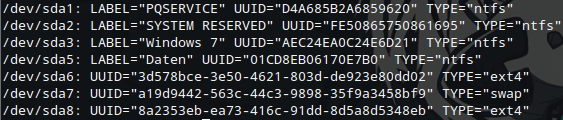
sudo blkid
What you will see are all your partitions. You can see their name on the right (LABEL='XY'), and what you need, the file-system, on the left. It should be something like this: /dev/sdxx.

You will also need to know how your partition is formatted. You see this after TYPE= .

So, after finding out your mount-point, you're ready to go. Open up Scratch as sudo, by typing this into the terminal:
sudo scratch-text-editor
Now, open up the file fstab in /etc.

What you will see are the partitions that are automatically mounted when you start your computer.

NOTE: Be careful in the next step!

The main part

The only part we need from this file is marked in red here.
First, create a new line, after the existing entries.

From here write down your file-system (the /dev/sdxx-Thing). In our example, it is /dev/sda5.

Now, in <mount point> we have to type in the mount point of our partition. Here, you'll have to type in /media/Name_of_Your_Partition.

Don't know the name? Open up Files and on the left, you will see all of your partitions. Write the name of your partition after /media. Is it a CD-ROM Drive? Type in /media/cdrom.

So in our case, it is Daten. So we will type /media/Daten there.
In <type> you will have to write down the file system of your partition. It can be NTFS, ext4 or whatever. Don't know which type it is? As already mentioned, you can find this out by typing into the terminal:
sudo blkid
In our case, the file system is NTFS

Next entry: <options>. Options contains information regarding who is allowed to read this partition, who the owner is, etc. Normally all you write here is defaults. (Look here if you have special needs.)

Now, in <dump> write 0. (Find more about it here if you you're using the Backup program "dump".)
And, finally, in <pass> type 2.

That's it. Reboot your system and it should be working.

Problems? Let us know what went wrong in the comments!
Read More

Share a folder among various local users

This article describes how to share a folder among various users in the same computer? It's a sort of "Public Folder".

We will install and use an app called bindfs. We will also need configure the shared directory. For this you will need to type some commands in a terminal window and edit one system file, so here we go.

Install bindfs
Open a terminal window (you can do this by pressing Ctrl+Alt+T), and type the following command (the sudo command will ask you for your password):
sudo apt-get install bindfs

Create the folder
Simply type the following commands in your terminal. (In this example the shared dir will be located at /srv/shared, you can use any name, but usually it's a good idea to keep this dir inside /srv):
sudo mkdir /srv/shared sudo chown root: /srv/shared sudo chmod 0700 /srv/shared
NOTE: here you're creating the dir, giving the ownership to root and setting the permissions.

Tell the system to share this folder
Now we need to tell the system to “mount” this dir to be accessed by the users at boot time, so we will edit the file called /etc/fstab.
First backup it:
sudo cp /etc/fstab /etc/fstab.bak
And now we can edit it:
gksudo scratch-text-editor /etc/fstab
This command will open Scratch to edit the file. Add at the end the following line:
bindfs#/srv/shared /srv/shared fuse perms=0700,mirror-only=userA:userB 0 0

What does this line mean?

It tells the system to mount using bindfs the dir called /srv/shared in this same point (/div/shared), and give full access to users called userA and userB. Of course you must replace the userA and userB with your actual user names, and you can add more users by separating them with a colon. (userA:userB:userC:userD)

Reboot. Now you can log in as any of these users and navigate the dir with Files.

TIP
Once you navigate to the dir's upper level (in our example: /srv) with Files, you can drag and drop the dir on the left column under the Personal section. Now you will have a shortcut to access the shared folder.
Read More

Installing Plank Themes

There are a number of themes available for Plank. In order to use them, you have to first install them.

To do so, open up "Files" and open the folder /usr/share/plank/themes.

Now, copy the folder of the theme you've downloaded, and paste it into /usr/share/plank/themes. (You should see 2 files in this folder named dock.theme and hover.theme.)
That's it.

Open up the System Settings from your applications menu and select Desktop → Dock. From here, click on Theme and you should see the theme(s), you've just installed.

To apply it, simply click on it, and you're done.
Read More

Set Default Folders (Pictures, Music, etc.)

Default folders are the ones you can see in Files named Downloads, Documents, Pictures, etc.

To change the default folders (or to fix them, as was my case), you need to edit one configuration file. The file to edit is: /home/your_username/.config/user-dirs.dirs.

Open Files and press CTRL+H to see hidden files. In your personal folder find a directory called .config. Find the file and edit it with Scratch.

This file looks like this:
# This file is written by xdg-user-dirs-update
# If you want to change or add directories, just edit the line you're
# interested in. All local changes will be retained on the next run
# Format is XDG_xxx_DIR="$HOME/yyy", where yyy is a shell-escaped
# homedir-relative path, or XDG_xxx_DIR="/yyy", where /yyy is an
# absolute path. No other format is supported.
#
XDG_DOWNLOAD_DIR="$HOME/Downloads"
XDG_TEMPLATES_DIR="$HOME/Templates"
XDG_PUBLICSHARE_DIR="$HOME/Public"
XDG_DOCUMENTS_DIR="$HOME/Documents"
XDG_MUSIC_DIR="$HOME/Music"
XDG_PICTURES_DIR="$HOME/Pictures"
XDG_VIDEOS_DIR="$HOME/Videos"
$HOME is your home directory (/home/YOUR_USERNAME). Simply change the name of the folder and that's it! You have a new "default" folder.

You can also choose the name you want. For example, XDG_PICTURES_DIR="$HOME/MyReallyCoolPictures" will refer to the folder called /home/YOUR_USERNAME/MyReallyCoolPictures.

NOTE: You can also change the location of your directories, but be careful!
Read More

Grouping applications in Plank

Plank, elementary's dock, has the ability to group applications. These grouped applications look like this:
When you click on it, you'll see all the applications in the folder: 
To do this, open the folder /usr/share/applications in "Files". Here, you will see most of your applications. Select all the applications you want to group and copy them.
After they've been copied, navigate to your Home directory and create a new folder. The name of the folder should be the same name as the Plank group you are creating. For example, if you're doing a group for multimedia, you should name the folder "Multimedia".

Open the newly created folder, and paste the files you've just copied. Finally, go back to your Home directory and Drag-and-Drop the folder into Plank. That's it!
Read More

Installing and Using Pantheon-Notify

Pantheon-notify is an elementary-themed notification system.
To install pantheon-notify, install via the terminal:
sudo apt-get install pantheon-notify
To activate, you must override the current notification system. Again, in the terminal:
sudo scratch-text-editor /usr/share/dbus-1/services/org.freedesktop.Notifications.service
Change the Exec line to: Exec = /usr/bin/pantheon-notify.

Save, reboot, and enjoy.

Volume changes will also appear different.
Simply hover over the notification to pull up the option to close the popup.
Thanks to Trung for the tip.

[Update: April 3, 2013]
To revert to the original notification system (notify-osd), open the Notifications.service file again. This time change the Exec line back to Exec = /usr/lib/notify-osd/notify-osd. Reboot.
Read More

Taking a Screenshot

The following article shows three different methods to take a screenshot in elementary OS Luna.

You can take a picture of your entire screen, ...
just the focused window, ...
or a selected area.
Here are the default key combinations:
  • Screen: PRINT SCREEN
  • Focused Window: ALT + PRINT SCREEN
  • Selected Area: SHIFT + PRINT SCREEN

These shortcuts will save a file with the screenshot into you Pictures folder. The same combinations with the CTRL key will copy the image to clipboard instead.

You can find these combinations and more in: System Preferences → Keyboard → Shortcuts
Read More