After elementary OS Luna has been officially released, a surge of new eOS users has arrived, and we are here to help. Everyone, including me, loves a "Top Things To Do After Installing..." list, so let's get you started.

Updating your system is always a good idea. Updates include bug fixes, security patches, and new features!
Install Firefox
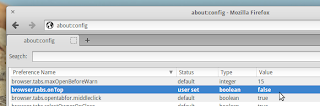
You can set up Firefox to fit in elementary OS perfectly as described here.
Like Chrome/Chromium? No Problem.
Install Chromium
Theme Chromium to fit into eOS as described here.
With the community PPA enabled you can now do the following.
Install elementary Tweaks
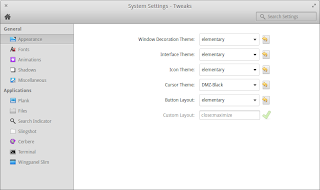
Once installed, you'll be able to access it by opening the System Settings and clicking on Tweaks. There are even more options in Tweaks that you can unlock by reading on and following the instructions.
Install Wingpanel Slim
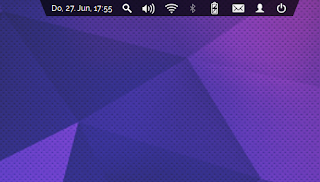
Once installed, open elementary Tweaks, activate Wingpanel Slim by hitting the switch, and customize it to your liking.
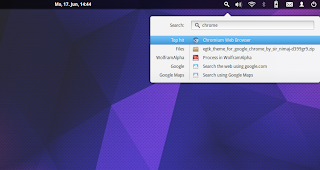
Install Indicator Synapse
Once installed, log out and back in and you'll have a search icon in your panel. You can change the keyboard shortcut with elementary Tweaks!
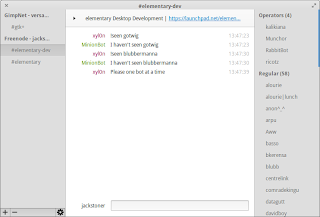
Install Third Party Apps
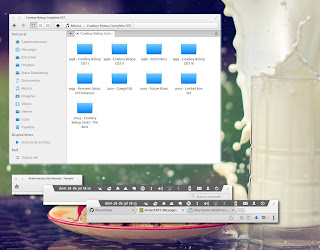
Install Themes
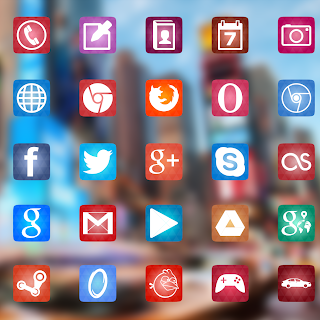
Install Icon Themes

Install Icons for Thirdparty Apps
Additionally, you can install extra Plank (the Dock that elementary OS uses) themes:
Install Dock Themes
How about some awesome new wallpapers?
Install Wallpapers Collection
Install Raring Generic Linux
Reboot and it should work! If booting fails, you can boot with your old kernel by holding down SHIFT during the boot process, you can now choose your old kernel, boot up, and remove the linux-generic-lts-raring package from Software Center.
That's it! You should be all set to customize elementary OS Luna to your needs.
Read More

UPDATE
After you have a freshly installed copy of elementary OS Luna at your hand, the first thing you should do is check for updates. You can either use the Update Manager by clicking on Applications (located on the top left corner) and looking for it there, or by opening your terminal (shortcut to open: CTRL + ALT + T) and typing:
sudo apt-get update && sudo apt-get upgrade
Updating your system is always a good idea. Updates include bug fixes, security patches, and new features!

MIDORI AND FLASH
eOS comes with the awesome lightweight browser Midori (pronounce it “midoɺi”, with a Spanish/ Japanese “r”). To get Flash working for it, you'll need to install ndiswrapper and do some tweaking, but don't fret, it's easier than it sounds. Just open up your Terminal (CTRL + ALT + T) and type in:
sudo apt-get install flashplugin-installer nspluginwrapper

sudo nspluginwrapper -i /usr/lib/flashplugin-installer/libflashplayer.so

nspluginwrapper -v -a -n -i
Update: Lewis Goddard has created a script that fixes flash in Midori if the above does not work for you here. Just follow the instructions provided there.
That's it, Midori should run Flash now!

OTHER BROWSERS
If you prefer to use Firefox or Chromium, no problem!You can set up Firefox to fit in elementary OS perfectly as described here.
Like Chrome/Chromium? No Problem.
Theme Chromium to fit into eOS as described here.
COMMUNITY PPA
Elementary Update has set up a community driven repository for third party applications, themes and more, all tailored to fit right into eOS. You can easily add the PPA to your system by opening your Terminal (CTRL + ALT + T) and typing:
sudo apt-add-repository ppa:versable/elementary-update

sudo apt-get update
With the community PPA enabled you can now do the following.

ELEMENTARY TWEAKS
You might be familiar with Gnome Tweak Tool or Ubuntu Tweak. Well, for elementary OS we have elementary Tweaks. With elementary Tweaks you can easily change advanced settings that are otherwise hidden in elementary OS and more!Once installed, you'll be able to access it by opening the System Settings and clicking on Tweaks. There are even more options in Tweaks that you can unlock by reading on and following the instructions.

WINGPANEL SLIM
Wingpanel, the super sexy space-saving top panel of eOS, is great as it is, but you might want something even more space saving due to a small screen or your personal preference. +Heath Paddock has forked Wingpanel and coded the awesome Wingpanel Slim. It is customizable through elementary Tweaks once installed.Once installed, open elementary Tweaks, activate Wingpanel Slim by hitting the switch, and customize it to your liking.

INDICATOR SYNAPSE
+Tom Beckmann, the developer behind Gala, elementary's Window Manager, has coded a search indicator based on Synapse.Once installed, log out and back in and you'll have a search icon in your panel. You can change the keyboard shortcut with elementary Tweaks!

APPS
There are also a bunch of elementary styled applications in the Community PPA. Here is a list of their package name and a short description:- audience - A modern media player
- birdie-granite - Twitter client for elementary OS
- cable - IRC client for elementary OS
- etube - Youtube viewer for elementary OS
- feedler - Awesome RSS reader
- foto - A very simple image viewer
- gazette - Clock, news and weather for your desktop
- nuvolaplayer - cloud music integration

THEMES
Albeit the awesome default elementary theme, the community has created a slew of astonishing themes and icon themes too.- elementary-blue-theme
- elementary-champagne-theme
- elementary-colors-theme
- elementary-dark-theme
- elementary-harvey-theme
- elementary-lion-theme
- elementary-matteblack-theme
- elementary-milk-theme
- elementary-plastico-theme
- elementary-whit-e-theme

ICON THEMES
The same goes for icon themes that have been customized to fit eOS, here is the available list:- elementary-elfaenza-icons
- elementary-emod-icons
- elementary-enumix-utouch-icons
- elementary-nitrux-icons
- elementary-taprevival-icons

OTHER THEMES
If you like the default elementary OS icon theme, you should install elementary-thirdparty-icons, which provides additional icons for thirdparty apps:Additionally, you can install extra Plank (the Dock that elementary OS uses) themes:
How about some awesome new wallpapers?
UPDATE YOUR KERNEL
Since elementary OS is based on Ubuntu 12.04, it uses a rather outdated kernel. If you have any hardware issues, you might be able to fix them by installing a backport of Ubuntu's 13.04 Kernel. Although some users report that newer kernels don't work well for them. Note: You can always revert.Reboot and it should work! If booting fails, you can boot with your old kernel by holding down SHIFT during the boot process, you can now choose your old kernel, boot up, and remove the linux-generic-lts-raring package from Software Center.
That's it! You should be all set to customize elementary OS Luna to your needs.


